
Audit Report
| The Audit Report shows all changes made on the website in chronological order, providing administrators with a complete audit trail of user activities, configuration changes and system events. |
|---|
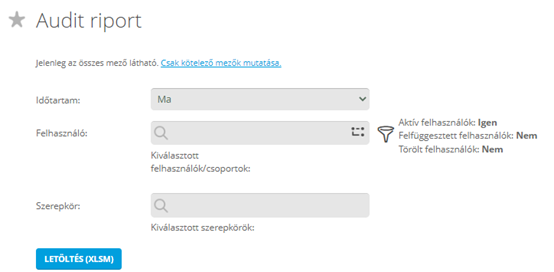
By clicking on the image you can open the Audit Report page or by using this link. (You need to login to your JC360 account.)
Before downloading the report you can specify the reporting period, users, user groups or roles.
About the report
The Audit Report displays all important events recorded by the JC360 system in chronological order. It enables administrators to review user activities, configuration changes, security-related events and server events for auditing, troubleshooting and compliance purposes.
The tables always contain the ID and name of the user performing the action and, in most cases, the IP address of the device used to perform the action.
Report contents
The Audit Report contains the following worksheets:
- User Logins
- Page Visited
- Forgot Password Changed
- User History
- User Group History
- Client Downloaded
- Audio File Downloaded
- Other File Downloaded
- User Created
- Task Created
- Task Assignment Created
- Rule Created
- Productivity Created
- Group-Supervisor Assignments
- System Settings History
- User-Role Assignments
- Server Component Restarts
- Server Job Events
- Company Aggregated KPIs History
Availability
The Audit Report is available in several formats:
- via the website in XLSX format
- via the REST API in JSON format
- via the Report Downloader Tool in CSV format
SIEM integration
The Audit Report data can be integrated with any SIEM system.
Integration can be performed using:
- JSON data provided by the REST API
- XLSX export
- CSV export
- HTML e-mail alert notifications (where applicable)
Access to audit report data
Via REST API
The Audit Report is available with the following function:
The function contains a companyAuthCode=XXXXXXXX section, where the company's authentication code must be inserted instead of XXXXXXXX (the registrant administrator can find this code on the Company Data page), and in the definitionId=YYYY section, the report identifier must be substituted instead of YYYY.
In this form, the request always retrieves data for the entire organization, but it is also possible to filter the report for specific users.
This method returns a JSON document with the following structure:

All tables contain the following elements:
'Columns' – The names of the columns in the table.'Rows' – The data arranged in rows according to the order of the columns.'TableName' – Name of the worksheet.
The Hide and Delete switches are only used during XLS report generation and have no effect on the JSON output.
Via WEB
The Audit Report is available from:
https://jobctrl.com/UserCenter/Reports/UserAuditReport.aspx
Available filters:
- Duration – Select the reporting period (current day/week/month, previous complete day/week/month, last X days/weeks/months or a custom date range).
- User – Select users from the company structure or enter them manually.
- User Role – Alternatively, users can be selected based on their assigned roles.
This method downloads the report in XLSX format.


Via Report Downloader Tool
The report download service can be downloaded via the following link:
The downloaded file must be unpacked into a suitable directory, and it is important that the installation of the application must be run as administrator.
It can be configured by running CustomReportDownloaderTool.exe:

- Auth code – The authentication code mentioned during the API download must be entered here.
- JC API Address – https://jobctrl.com/api/api.asmx (for companies hosted in the cloud).
- JC REST API Address – https://jobctrl.com/api/restapi/ (for companies hosted in the cloud).
- Service name – CustomReportDownloaderService.
Click Save, then click Install service.

- Job name – Any name can be specified.
- Output path – The location where the downloaded report will be saved.
- Use only suffix / Use fixed name – When
Use only suffixis selected, every download is saved as a new file. WhenUse fixed nameis selected, the existing file is overwritten on every download. - Sheet name – Enter the worksheet to be downloaded.
- Report interval – Defines how often the report is downloaded automatically.
- Start day / End day – Specifies the reporting period.
- User IDs – Users to be included in the report. If left empty, the report is generated for the entire company.
- User Group IDs – User groups to be included in the report. If left empty, the report is generated for the entire company.
- Max affected users per request – Maximum number of users processed in a single request.
- Minimal time for idle status (sec) – Idle time threshold used during report generation.
After configuration, click Save and then Restart service. The tool downloads the report according to the configured settings and saves it as a CSV file in the specified output path.
Audit Report as a security alert
The Audit Report can also be used as a security alert mechanism.
Instead of displaying an entire reporting period, it can be configured to send HTML e-mail notifications every hour whenever important configuration changes are detected, including:
- System settings
- External file downloads
- Productivity settings
- Visibility changes
In this mode only the changes since the previous execution are included in the report.
This functionality is currently available upon request through the JC360 team.
Audit log entries cannot be deleted through the JC360 application.
Audit log data can only be removed by direct database access. The application does not provide functionality to delete audit log files or individual audit log entries.
Sample HTML e-mail:
