
reports:performance_summary_report
Table of Contents
Performance Summary Report
| Based on the selected KPIs the report measures the performance on corporate level. Due to easier comparison the report contains values from previous periods. This way you can easily evaluate if your employees performance increased or decreased. The overall, group and individual score calculations are based on the KPI's weight. |
|---|

By clicking on the image you can download the report or from here . (You need to login to your JC360 account). Before you download the report, you have to specify the user groups and the period. For more information about setting up the report see the general informations page.
Report Configuration
After the general configuration (see more about the general configuration fields here ) you will see a report specific field:

- If you have task groups for special purpose what you don't want to see in the report, you can exclude them by starting enter their name or select from the dropdown menu when click on the field.
- Select this if you want to get the xlsm file in e-mail. In general you only get the HTML view.
- You can make hierarchy between users and groups, starting from the company level. If you need hierarchy specific information, you can customize this here. You have to set 2 level separated by comma (like in the example). For more informations about he user and group levels visit the user management page
- Here you can set the details of the report's HTML view:
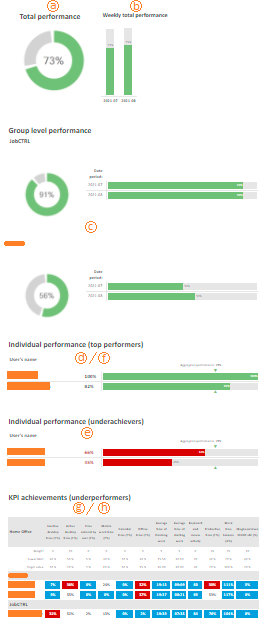
- The total performance indicator measures the norm of the selected people from the whole period.
- The total performance in weekly breakdown.
- The total and weekly performance of the selected groups.
- Best 3 performance (Overall).
- Worts 3 performance (Overall).
- Overall individual performance. Note that you can only select The overall or the best/worst performances.
- Option d., e. and f. is compared to the overall aggregated performance even if option a. isn't selected.
- The spreadsheet shows only the worst 3 underperformer.
- The spreadsheet shows all user in a group breakdown.
- The sheet in option g. or h. provides information about the selected KPI weights, the limits what someone shouldn't cross and the target values.
- You can select any KPI from the available list by start typing the name of the KPI or select them from the dropdown menu by clicking on the icon at the end of the field. If you don't select any, the followings will be presented in the report:
- Inactive desktop time (Σ%)
- Active desktop time (Σ%)
- Time entered by user (Σ%)
- Mobile work time (Σ%)
- Calendar time (Σ%)
- Offline time (Σ%)
- Average time of finishing work
- Average time of starting work
- Keyboard and mouse activity
- Productive time (Σ%)
- Work time balance (Δ%)
- You can exclude weeks from the report what wasn't whole in the selected period (For example a monthly report's first or last day was Tuesday.) Theese weeks can distort the weekly diagrams.
- If unchecked, the calculation of the total performance is based on the current period (the previous periods is lighter green on the html view). If checked the last periods is taken into consideration too (every period is the same green like in the example).
- Inactive time or idle period is part of the worktime without desktop activity (mouse or keyboard stroke). Here you can define the length of idle period after which the worktime falls into the inactive worktime category. By default after 5 minutes idle time worktime registration is automatically suspended and users are switched to inactive status (the desktop icon turns red from green).

The XLSM wiew
While the html view is only preconfigurable, the xlsm is more dynamic:

- The description of the currently selected KPI
- Here you can select the hierarchy level, where user is the deepest and group2 is the bigger from the two layer what you select at the report setting's option 3.
- The XLSM gives you possibility to select daily and monthly aggregation on top of the HTML view's weekly and overall breakdown
- You can select and view the KPIs one-by-one from this list.
- The calculation mode of the selected KPI .
- If you selected the report setting's option 6., you can always see this calculation mode in the top of the excel's field (even if you didn't select, you find the calculation here)
You can save a customized report by making a favorite report for easy access or to get it on schedule for a specified group. The guidance for this is found in the favorite report page .
reports/performance_summary_report.txt · Last modified: 2021/03/17 08:16 by support